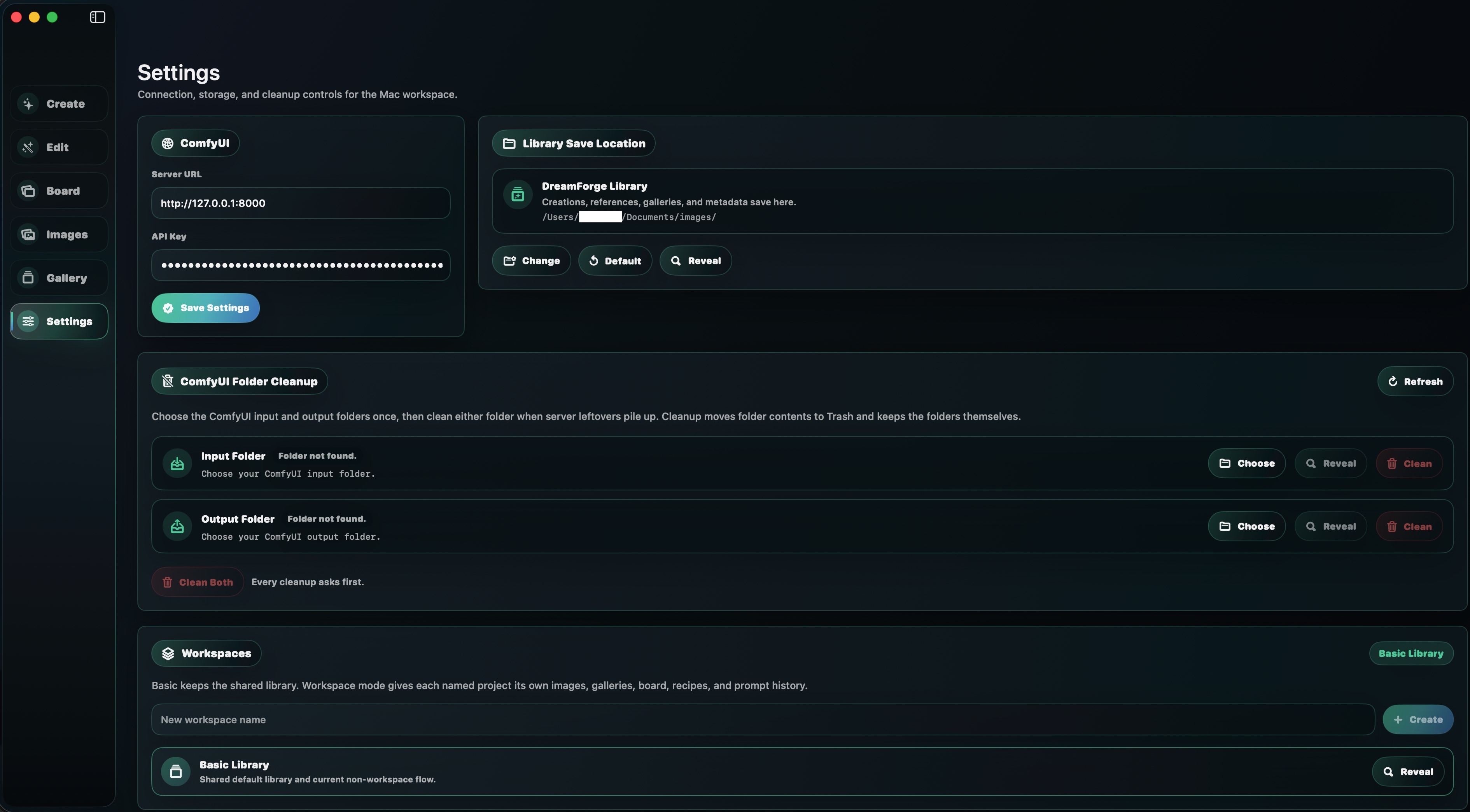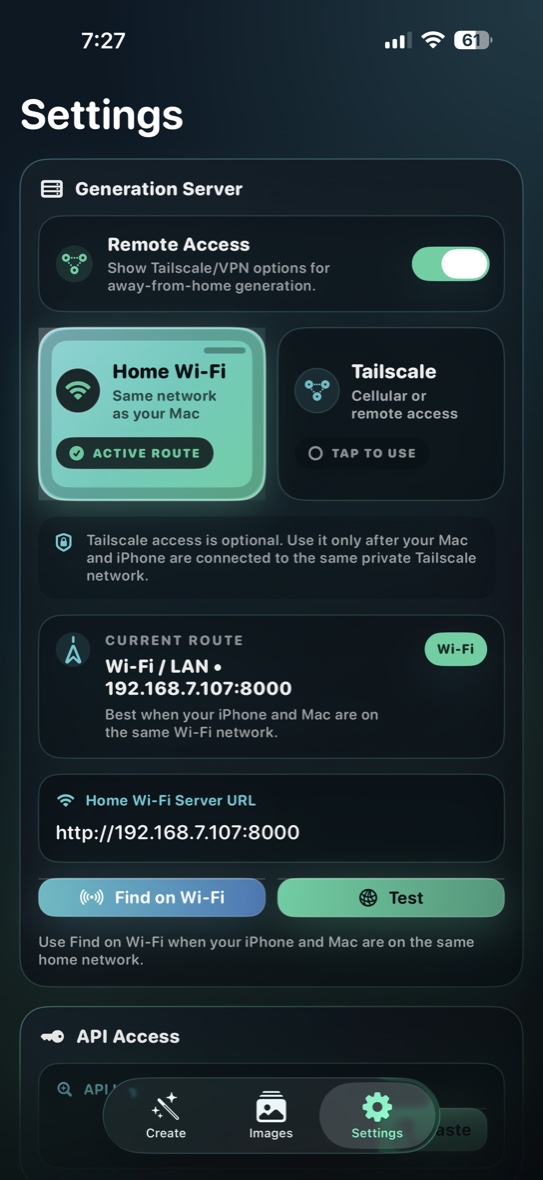
Start ComfyUI
Run ComfyUI so it listens on your network instead of only on localhost.
DreamForge is the mobile control surface. Your ComfyUI server is the engine doing the generation, routing, partner API calls, and upscaling. This guide walks through the cleanest way to connect the two and keep creating from iPhone or iPad.
If ComfyUI is already installed, this is the shortest path from server launch to a generated image inside DreamForge.
Run ComfyUI so it listens on your network instead of only on localhost.
Add your Wi-Fi or Tailscale URL in DreamForge Settings.
Use Test before creating so you know the phone can reach the server.
Bring in references from Apple Photos or the Wi-Fi Import website.
Add references, write a prompt, choose model and size, then tap Generate.
Use this when starting ComfyUI from the machine that will serve DreamForge.
python3 main.py --listen 0.0.0.0 --port 8000 --enable-cors-header "*"
DreamForge does not include ComfyUI inside the app. It connects over Wi-Fi, Tailscale, or another trusted private route to the ComfyUI server you run.
Use this route when your iPhone or iPad and the Mac running ComfyUI are on the same local network.
http://192.168.7.107:8000
Do not use 127.0.0.1 on a real iPhone or iPad. On the device,
127.0.0.1 means the phone or tablet itself, not your Mac.
Remote Access is designed for private routes like Tailscale. Wi-Fi scanning does not scan Tailscale, so enter the exact Tailscale URL manually.
http://100.92.190.92:8000Importing from Apple Photos or Wi-Fi copies images into DreamForge's own app library. Photos is not used as the active working library.
Use imported images as reusable visual inputs without mixing them into creations.
Generated images stay organized separately so finished work is easy to review.
DreamForge accesses Photos only when you choose to import or export.
Start a temporary import website from the app and send images from another device.
Imported files are copied into DreamForge so your working library stays contained.
Add up to five reference images, enter your prompt, optionally use AI Prompt, choose model and size, adjust Shot Builder, then tap Generate.
Use Gemini-powered help to study a reference and turn rough intent into stronger prompt language.
Choose supported partner-node API models without wiring node graphs by hand.
Add optional camera distance, angle, lens, and lighting language only when you want it.
Tap to preview, swipe left or right, pinch to zoom, and long press for actions. Use folders, collections, favorites, and export only when you choose.
Open or long press a generated image, choose Enhance or Upscale, pick your Magnific options, and the result returns to your creations as a new image.
DreamForge sends selected prompts and selected reference images to the ComfyUI server configured by the user. If the ComfyUI workflow uses partner API nodes such as OpenAI/ChatGPT-style image services, Magnific, Seedream, Gemini/Nano Banana, or other commercial API providers, that workflow may upload the selected prompt and images to the provider's servers for generation or enhancement. This is normal for commercial AI APIs. Users who want fully local generation should use local ComfyUI workflows that do not call external API nodes.
Most problems come down to server reachability, local network permission, Tailscale routing, API keys, or a ComfyUI workflow error.
--listen 0.0.0.0.http:// and :8000.http://127.0.0.1:8000 on a real device.http://YOUR_TAILSCALE_IP:8000 in Safari first.Send a note to support@eventide-labs.com and include your server route, whether you are on Wi-Fi or Tailscale, and what the Test button says.