Bring the whole setup into one place.
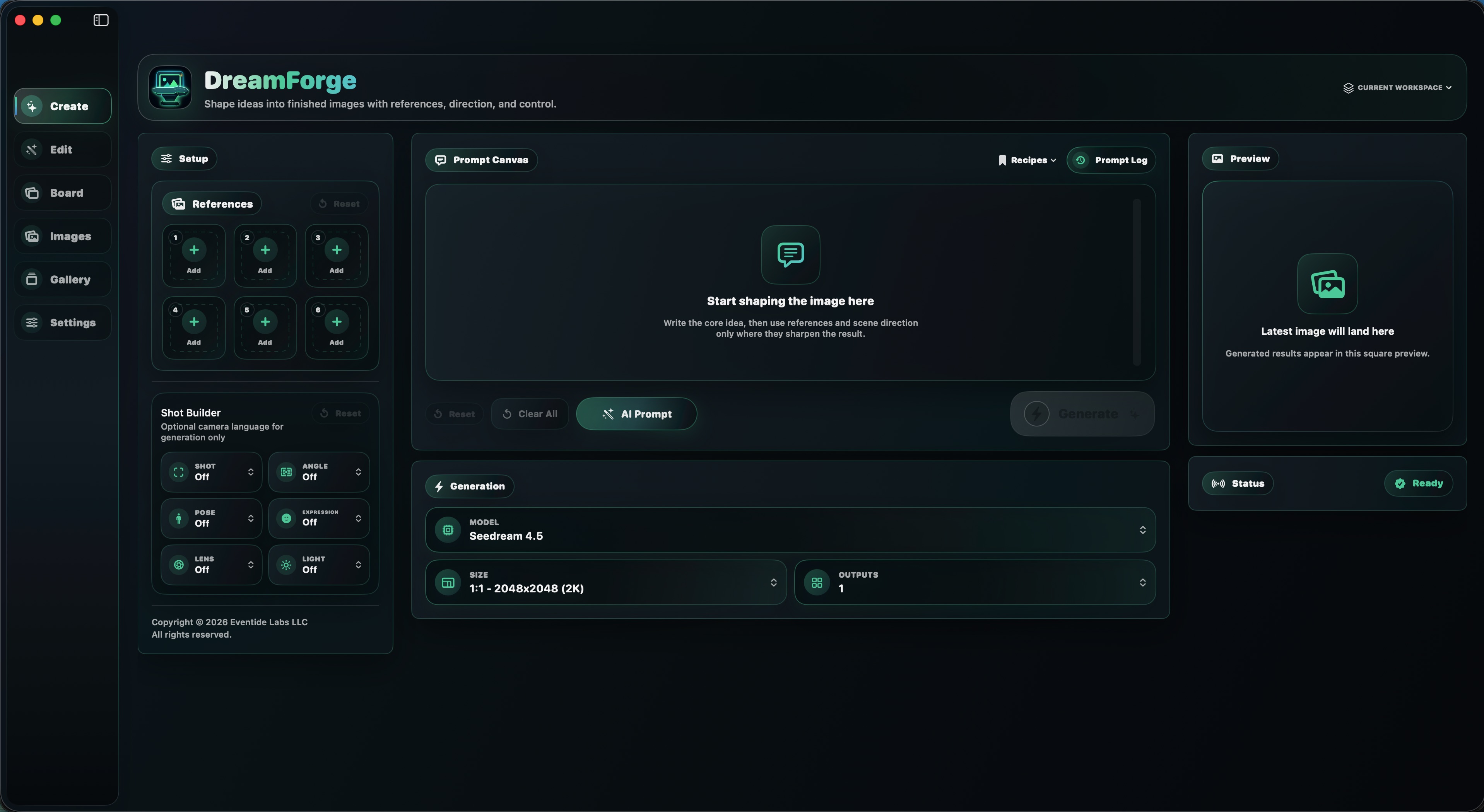
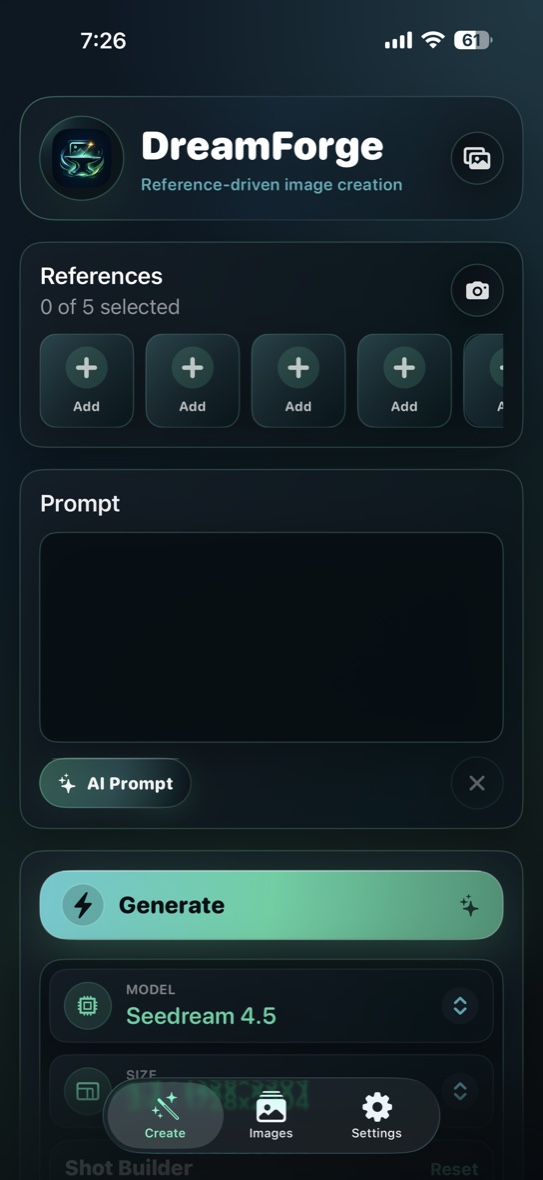
Prompt, reference slots, camera capture, AI Prompt, model choice, output size, and generate controls stay on one focused creation surface.
DreamForge connects your iPhone to your ComfyUI server and Comfy account, giving you a clean mobile control center for reference images, partner-node models, prompt building, image libraries, and Magnific Upscaler.
Add reference images, describe the result, choose a partner-node model, and let DreamForge send the right prepared workflow to ComfyUI.
Prompt, reference slots, camera capture, AI Prompt, model choice, output size, and generate controls stay on one focused creation surface.
Choose shot, angle, lens, and lighting cues when you want more control, or capture a real-world photo in the app and use it as a reference.
Choose from the partner-node API models available in DreamForge without wiring ComfyUI nodes by hand.
More partner-node API models will be added as they become available.
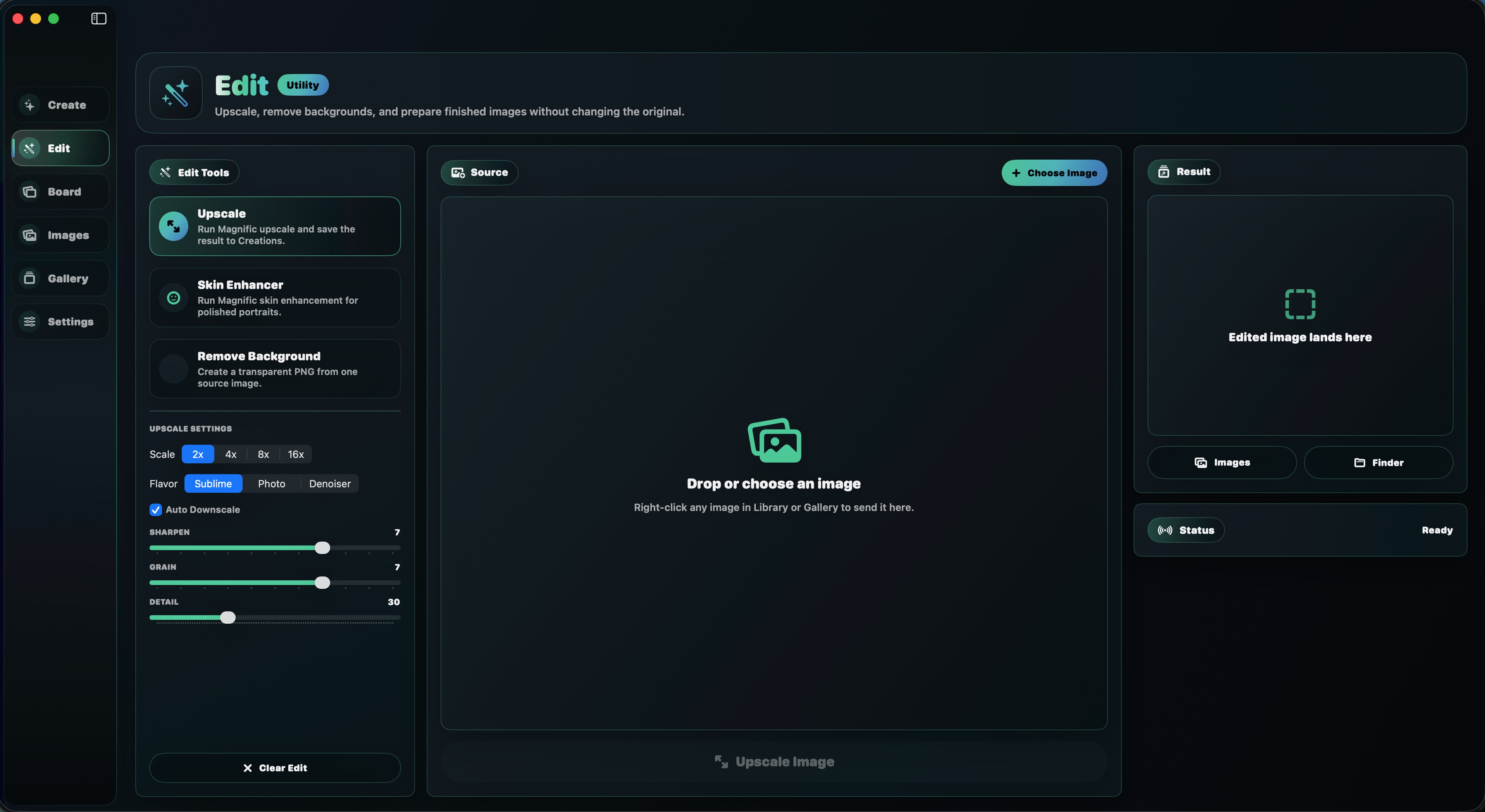
DreamForge is built around the full creative loop: generate the image, inspect it, reuse it as a reference, copy prompt language, refine it with Magnific Upscaler, or save it back to Photos when it is ready. The built-in AI Prompt builder can study a reference image through Google Gemini and turn it into stronger generation language.
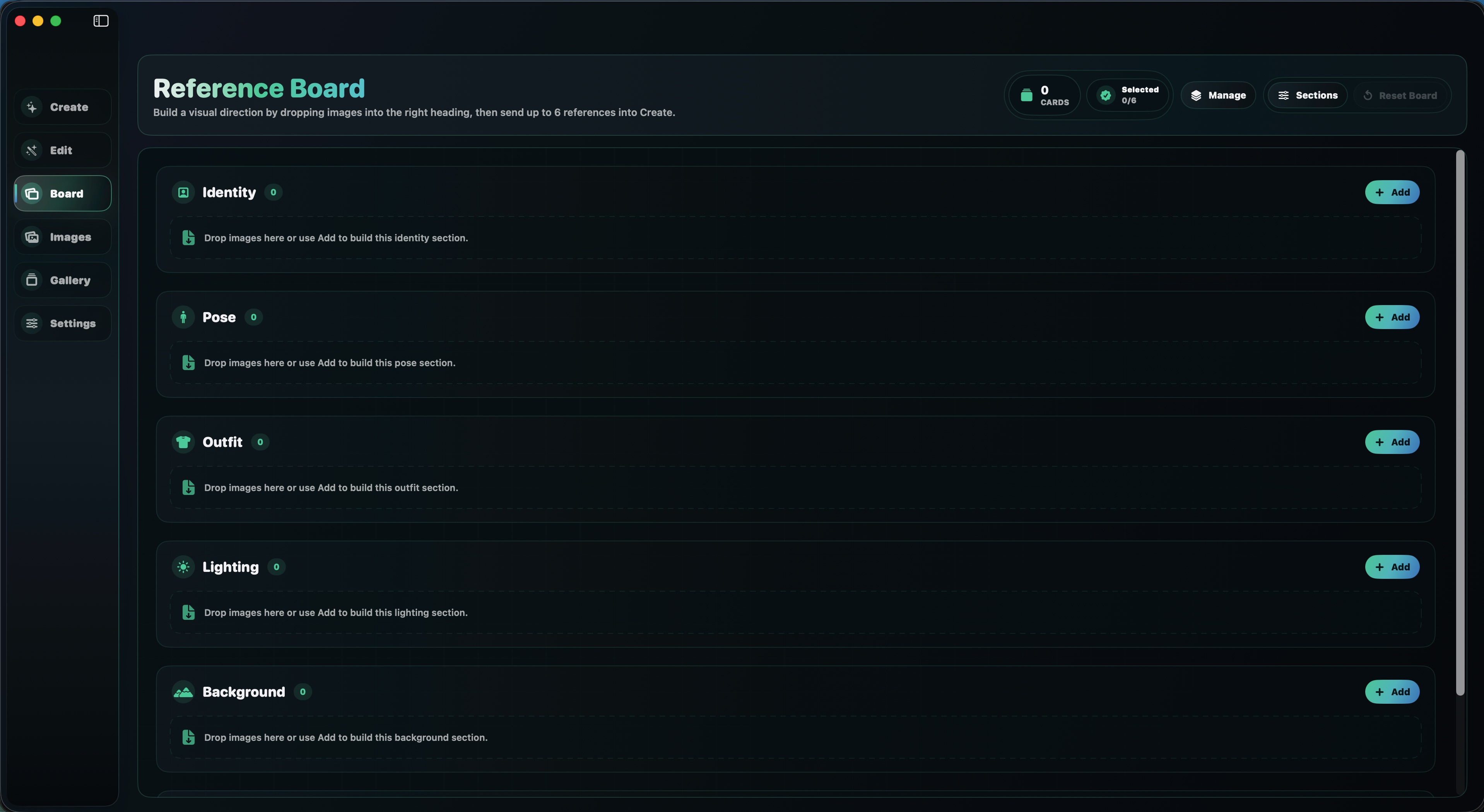
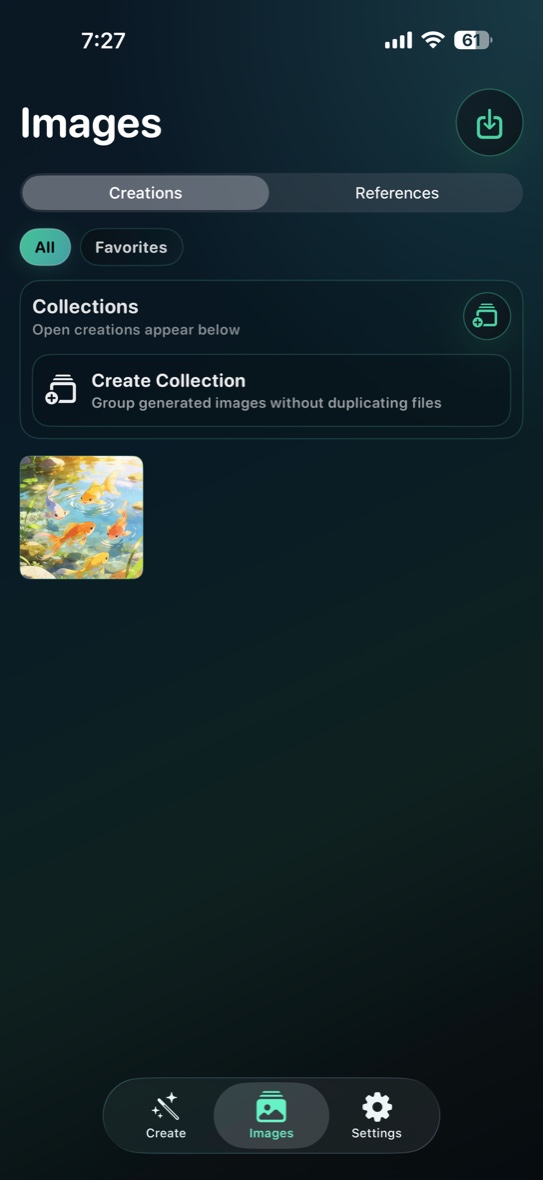
DreamForge separates generated work from reusable references, so your inspiration images, finished outputs, folders, and collections stay easy to understand.
Connect to your ComfyUI server from home Wi-Fi, Tailscale, or VPN. Add your Comfy account API key, then use your credits for partner-node APIs like Seedream, GPT Image 2, and Nano Banana. DreamForge includes the prepared workflows, model routing, reference handling, and output organization, so your phone becomes a complete app for your server.
Find a local Wi-Fi server, test the route, or configure Tailscale/VPN access for away-from-home generation.
Paste your Comfy account API key for partner nodes, while references and creations stay inside DreamForge with Face ID or Touch ID lock options.
Keep generated images and reusable references organized with creations, folders, collections, favorites, previews, and export actions.
DreamForge works with your own ComfyUI server. If this is your first time connecting an iPhone to ComfyUI, the guide walks through server setup, Wi-Fi, Tailscale, image imports, partner APIs, and common fixes.
Read the GuideDreamForge is built for creators who already have, or plan to run, a ComfyUI server. You need the DreamForge iPhone app, a reachable ComfyUI server, and a Comfy account API key if you want to use credit-based partner nodes. The simplest setup is your iPhone and server on the same Wi-Fi network.
No. DreamForge is meant to feel like a finished mobile app, not a node editor. The supported workflows are already prepared behind the scenes. You choose a model, add references, set size and shot direction, write or generate the prompt, then tap Generate.
DreamForge is designed around partner-node image models and refinement tools, including Nano Banana, Nano Banana Pro, Seedream 4.5, Seedream 5.0 Lite, GPT Image 2, and Magnific Upscaler. Model choice stays simple in the app while your ComfyUI server and Comfy credits handle the generation. More partner-node API models will be added as they become available.
Yes, it is designed with Tailscale and VPN-style private networking in mind. Home Wi-Fi is the easiest route, but when your iPhone and server are on the same private Tailscale network, DreamForge can use that route so you can generate while you are away from the studio.
Questions or issues with DreamForge? support@eventide-labs.com